Information Systems:Phone System Quick Start Guide
Jump to navigation
Jump to search
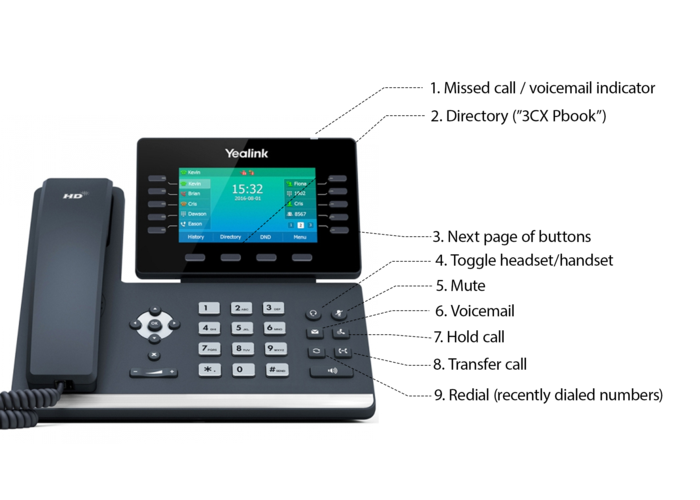
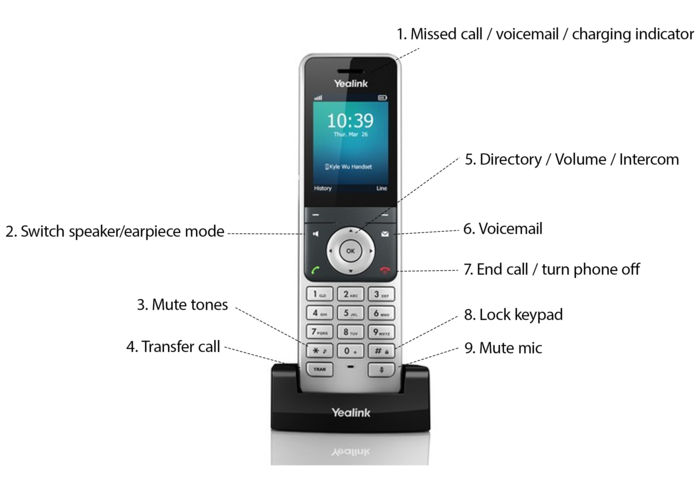
This guide was created to help staff become acquainted with the desk and cordless phones of the new phone system.
Phone buttons

| T54W Deskphone | |||||
|---|---|---|---|---|---|
| 1. Missed call indicator LED | Blinking red light with a missed call or new voicemail messages. View call history to acknowledge/dismiss this notification. | ||||
| 2. Directory | Directory of company extensions. Labeled "3CX Pbook" in our system. | ||||
| 3. Next page | Page through the button panel for additional button mappings. | ||||
| 4. Toggle headset/handset | This button will be lit green when in headset mode, and unlit when in handset mode. Although it can be used to toggle between the two modes, it is not necessary to do so, as operation of the headset or handset will automatically place the phone in the correct mode. | ||||
| 5. Mute | - | ||||
| 6. Voicemail | - | ||||
| 7. Hold call | - | ||||
| 8. Transfer call | - | ||||
| 9. Redial | - | ||||

| W56H Cordless Handset | |||||
|---|---|---|---|---|---|
| 1. Missed call / voicemail /charging indicator | Blinking red light with a missed call or new voicemail messages. View call history to acknowledge/dismiss this notification | ||||
| 2. Switch speaker/earpiece mode | - | ||||
| 3. Mute tones | Page through the button panel for additional button mappings. | ||||
| 4. Transfer call | This button will be lit green when in headset mode, and unlit when in handset mode. Although it can be used to toggle between the two modes, it is not necessary to do so, as operation of the headset or handset will automatically place the phone in the correct mode. | ||||
| 5. Directory / Volume / Intercom | Up arrow: Intercom, Down arrow: Directory, Left/Right arrows: Adjust volume | ||||
| 6. Voicemail | - | ||||
| 7. End call / turn phone off | Hold to turn off. The phones shut down and start up rapidly. | ||||
| 8. Lock keypad | This is to prevent accidental touches. | ||||
| 9. Mute mic | - | ||||
Things to note
- The phone system has an intuitive menu interface. Users are encouraged to navigate through the options. However, some pre-configured settings are managed by the phone system and, if changed by the user, may be overridden when the phone is re-provisioned by the server (i.e. receives a configuration or firmware update). User-specified settings that are overridden upon an update include the wallpaper, ringtones, and button mappings. The phones are not expected to re-provision on a regular basis, but we are also exploring solutions that will enable users to save their personalized settings permanently.
- When placing a call, remember to hit the Send or OK buttons after dialing the number. The phone will not automatically place the call.
- Headset users will experience similar functionality to the current system i.e. a call can be answered/initiated with the press of the button on the side of the headset.
- All current headset users will receive replacement headsets. The old headsets are not compatible with the new phones.
- There is now a company directory accessible via the phone. This is labeled 3CX PBook, or Remote Directory and lists the company's extensions.
- The default voicemail code (password) is your extension number. To change it, follow these instructions [#Changing your voicemail code]
- The intercom feature, which is enabled for many extensions in our current system, is now disabled by default. This is the feature whereby, when calling a local extension, a 2-way intercom is established immediately rather than ringing their phone. To replicate this feature in the new system, dial *11 and then the extension.
- For cordless phone users, please note that other handsets may be linked to the same wireless base. Pressing the "Line" shortcut key will show these other handsets, but there is no other use for this button other than being able to see other handsets connected to the same base.
- This "Line" key may be confused with calling lines. To access a second phone line while mid-call, a "New Call" shortcut will be displayed during the call.